What is MFA (Multi-Factor Authentication)?
MFA is a secondary authentication method used when signing into various online services, ensuring that users' accounts and logins remain secure by providing an additional layer of security during the sign-in process.
Why is it important?
MFA is crucial as it offers an additional layer of security for users in any organization. It adds a level of security, making an account less susceptible to compromise and preventing unauthorized access to data and systems.
Different Types of Authentication
1. Phone number: A six-digit code is sent to your phone, allowing you to access systems and services by entering it into the Office 365 login page.
2. Microsoft Authenticator App (Recommended): When signing into Office 365 services, you will be prompted to enter the code displayed in the Microsoft app or approve/disapprove users signing into Office 365.
How to set up Office 365 MFA
Start by opening Microsoft Edge and navigating to office.com. Then, on the page below, click "Sign In."
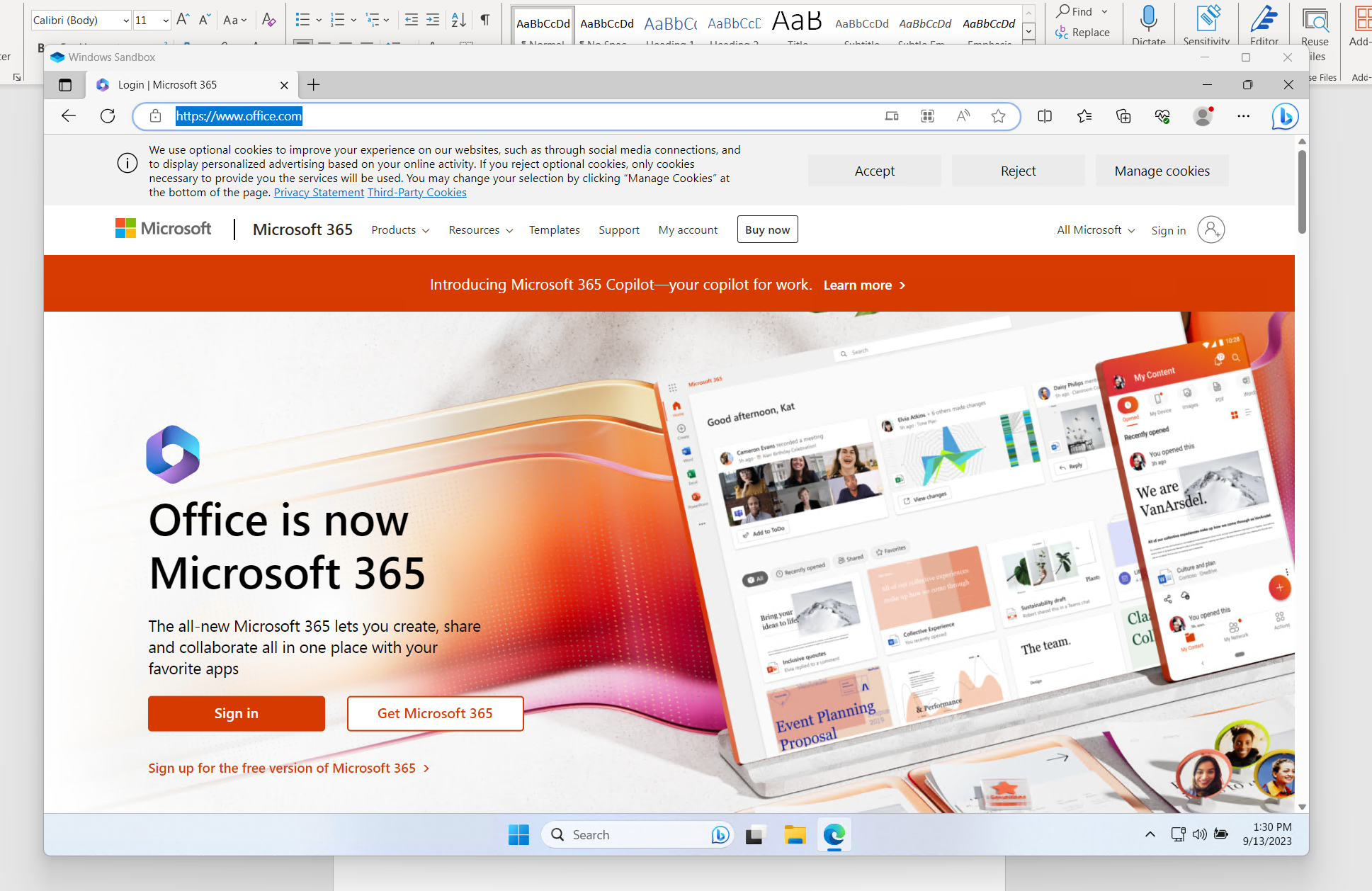
Then login with your Office 365 credentials.
You will then be asked to provide further information to configure Multi Factor Authentication.
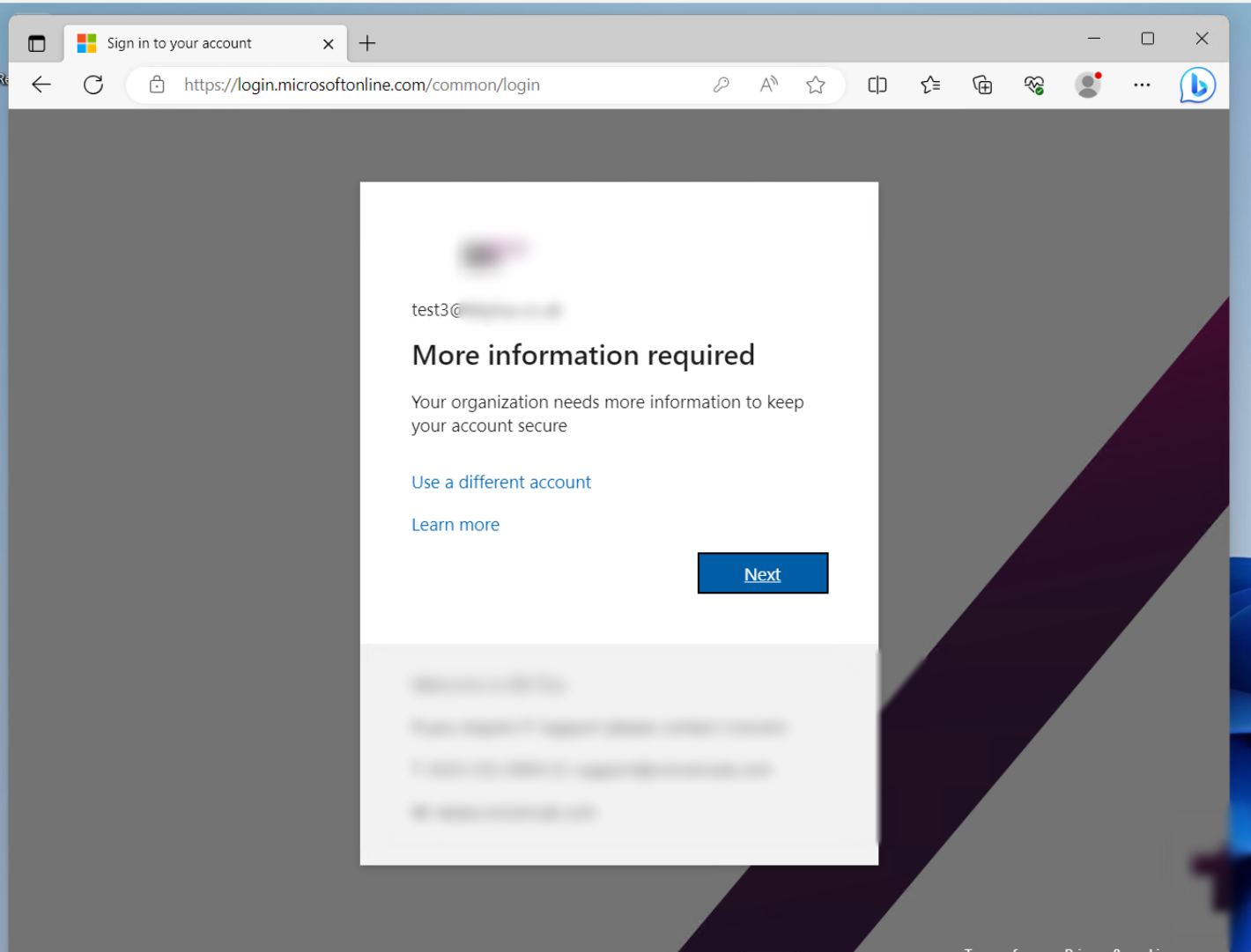
Click next.
Your screen will now look like this:
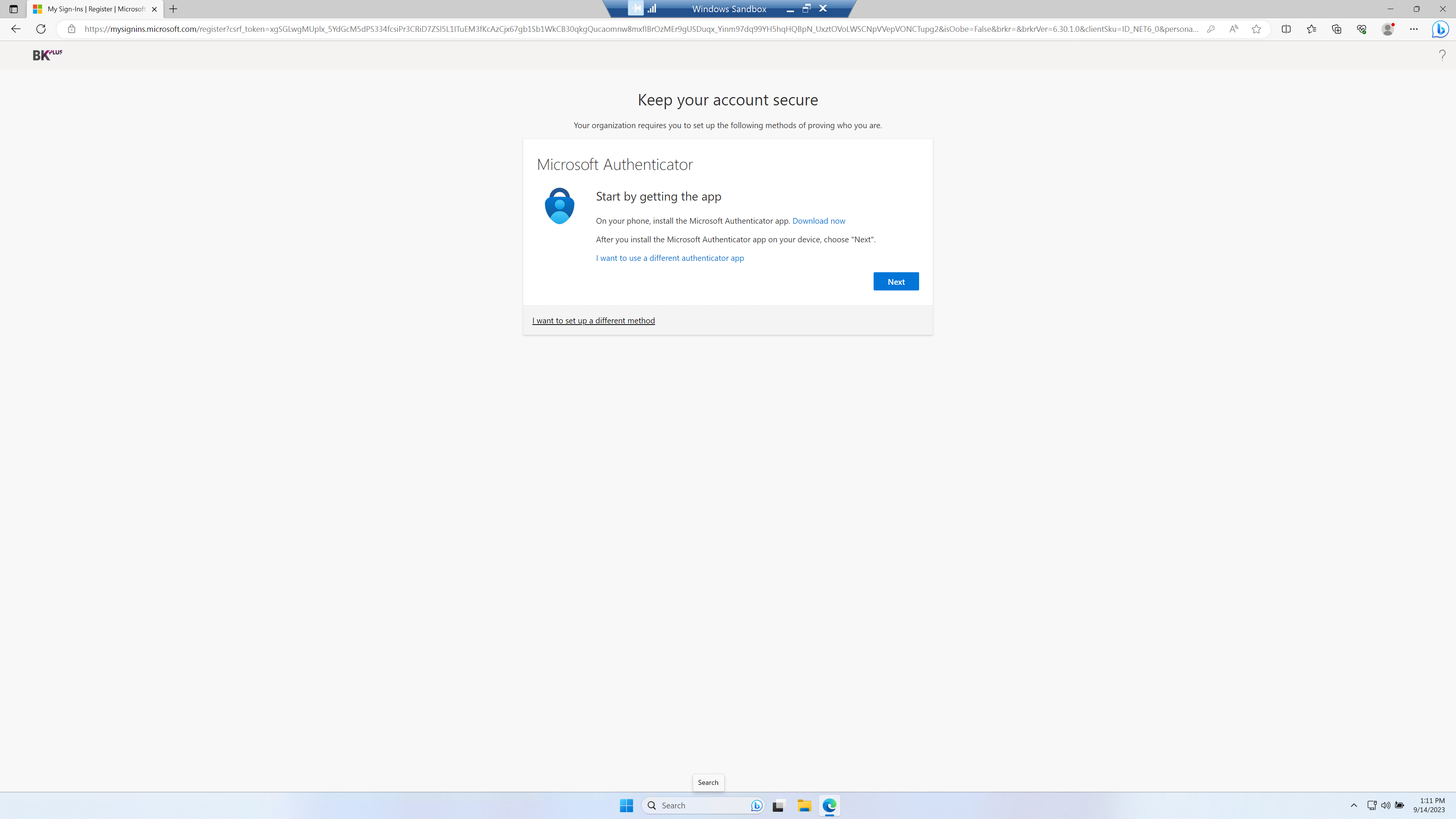
You will then be prompted to download an app, once the app is downloaded click next.
Now open the app
It will show text saying "Authenticator" at the top of your screen, press the plus icon located to the right of this.

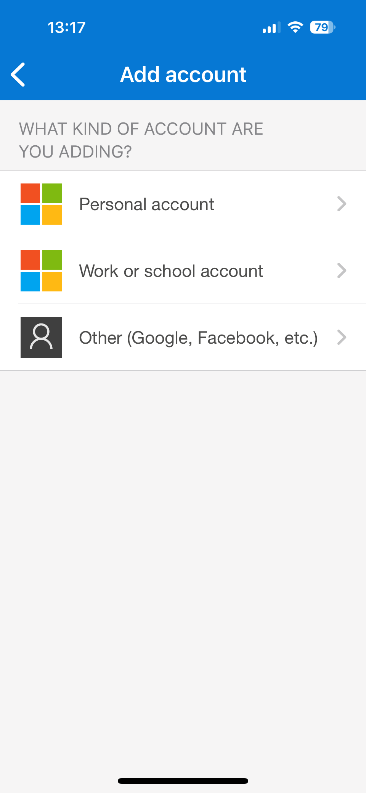
Now press work or school account.
Now your computer screen will display a QR code like shown below.
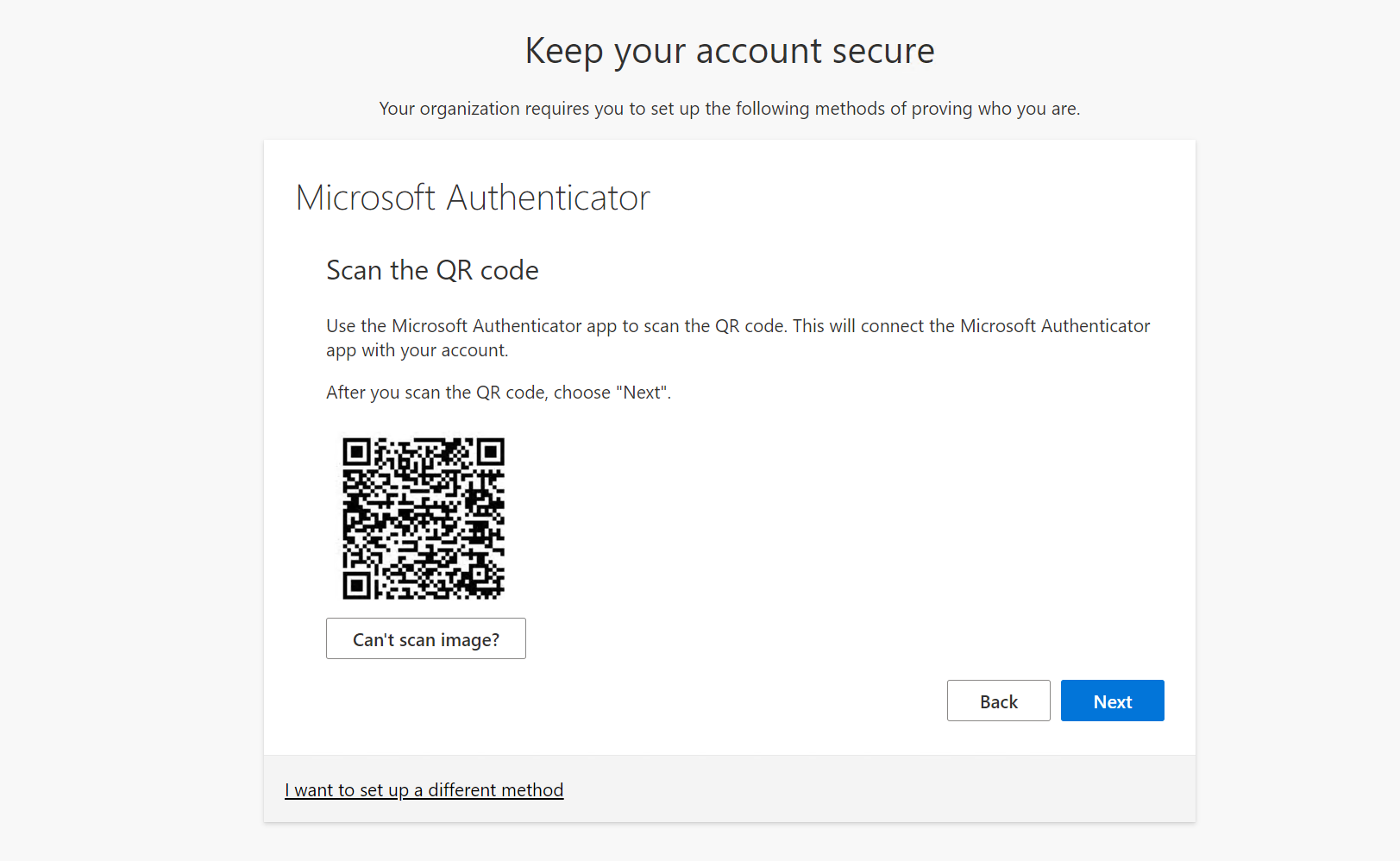
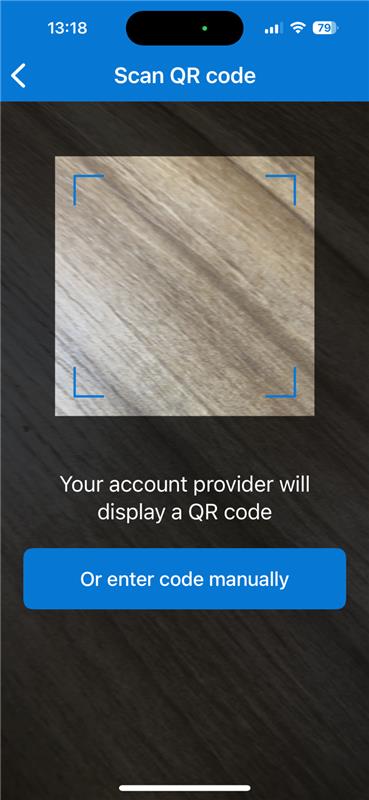
You will now need to press scan QR code on your mobile phone app and scan the QR code
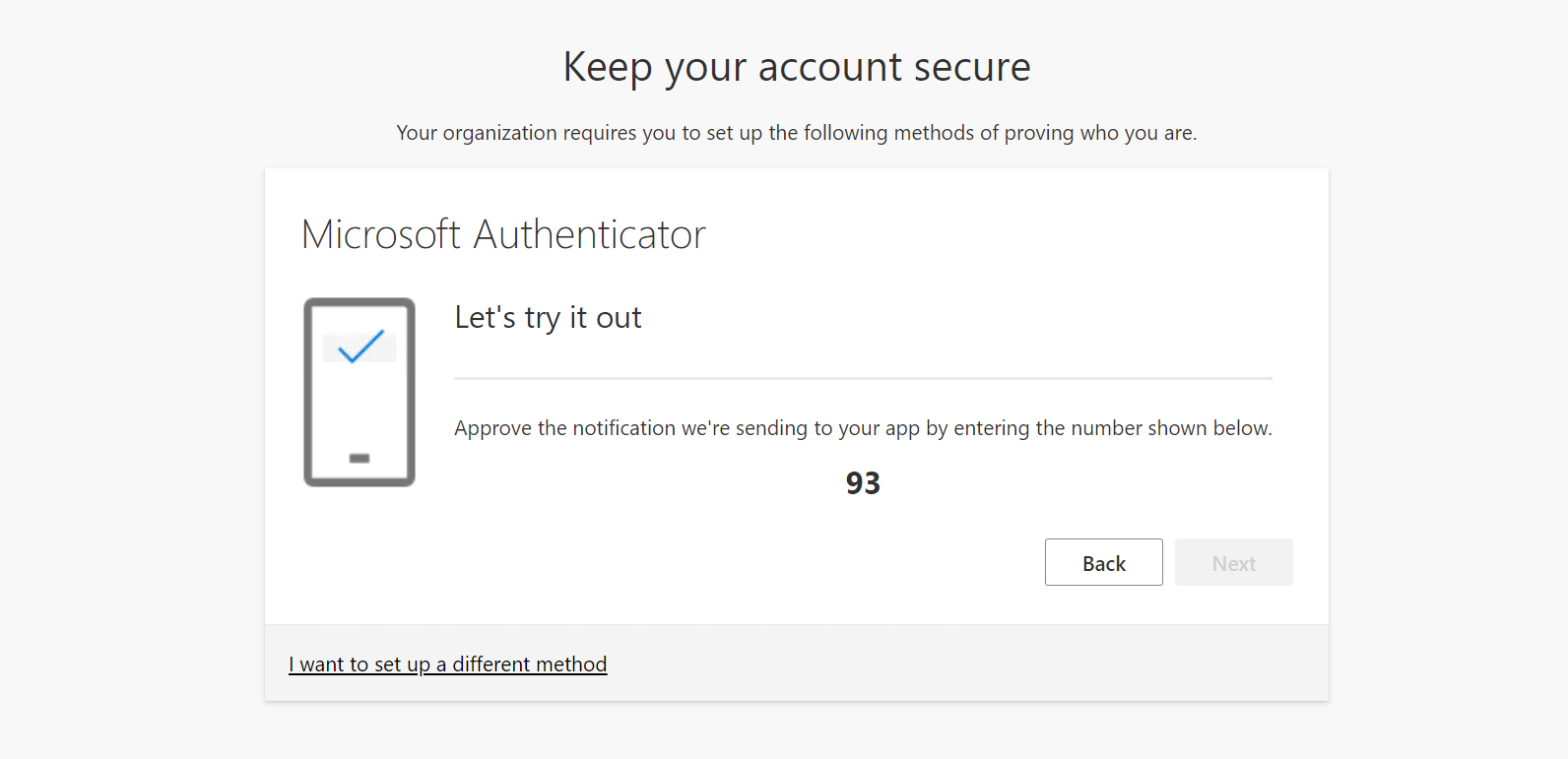
You will now need to enter the number displayed on your authenticator app and press next.
Now your authenticator app is setup.
How to use phone number as your primary authenticator method.
Some users prefer a phone number to setup a phone number authentication. here is the guide below:
Return to the setting up the authenticator method screen as shown below and select 'I want to setup a different method'
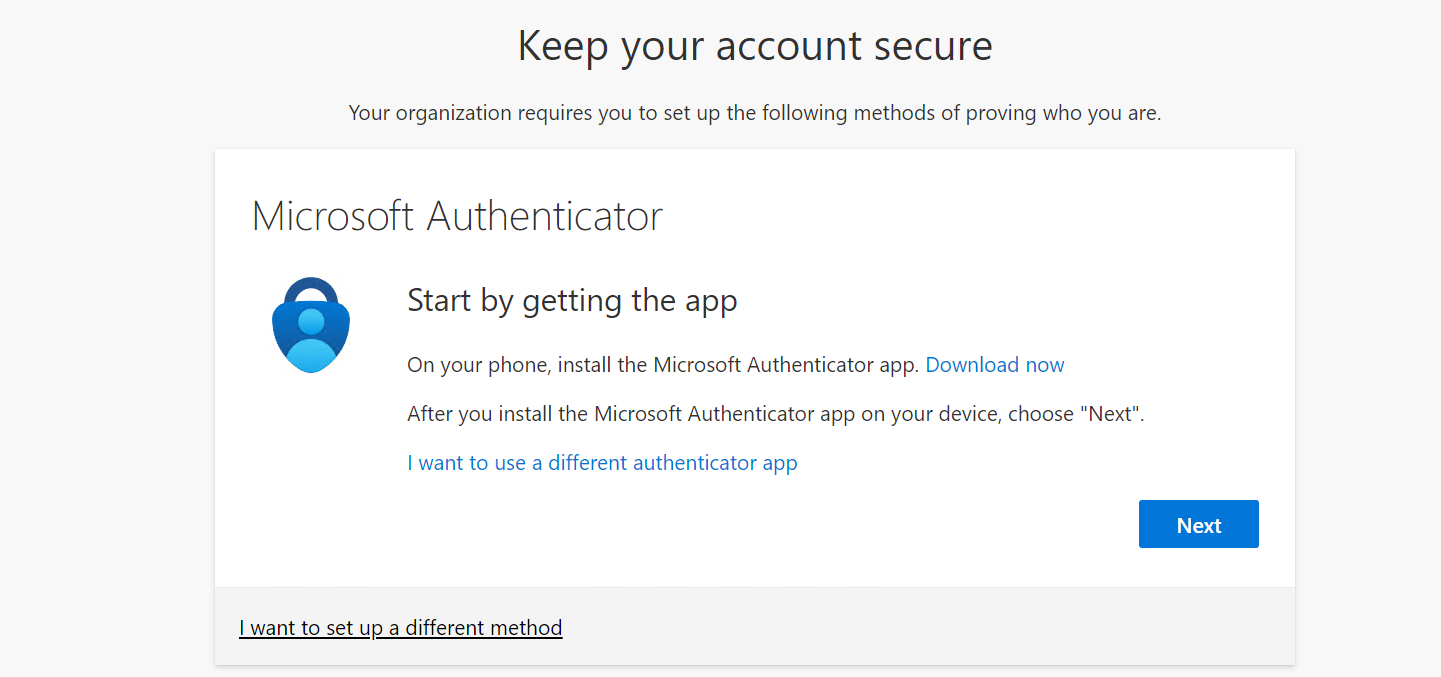
Then, choose phone and press next.

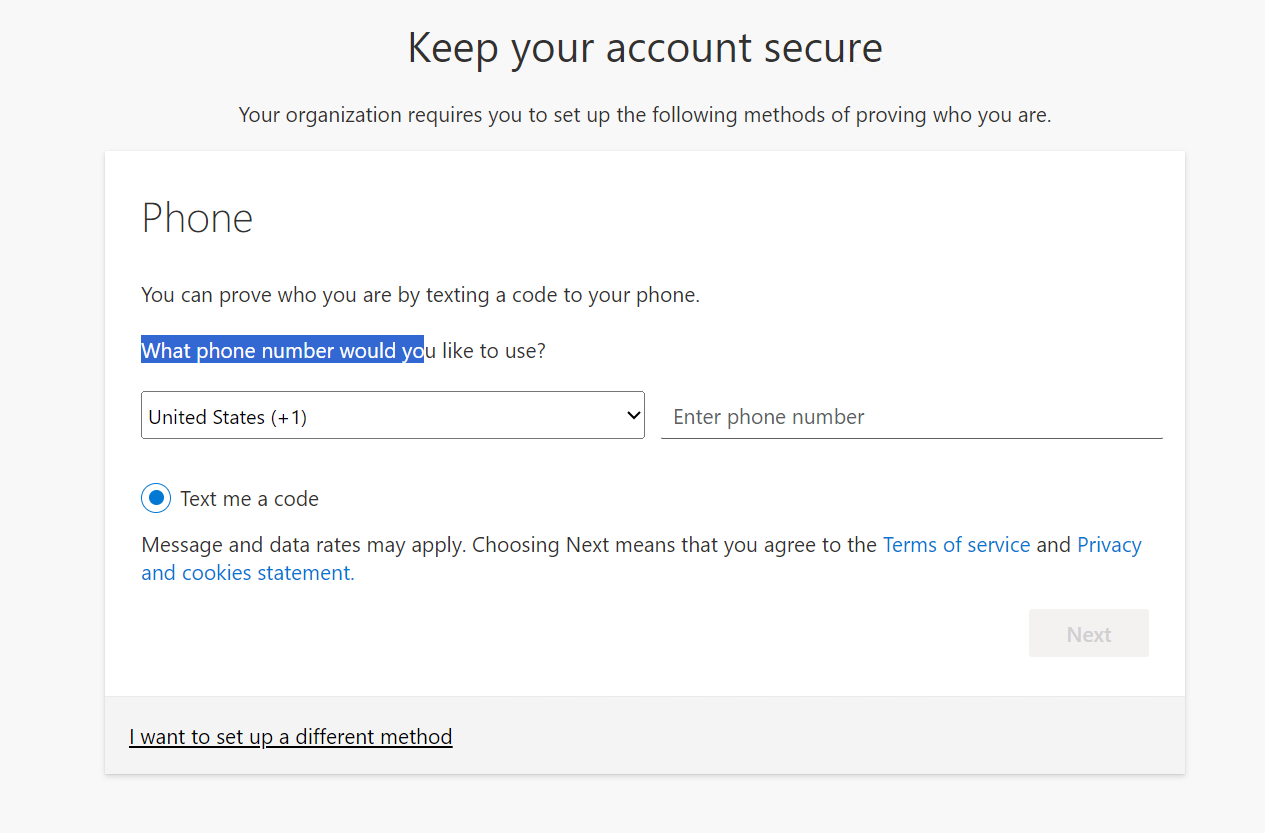
Change the country to 'United Kingdom +44' and enter your Mobile Number, click next, you will then receive a 6 digit code, type in this code, then click next again.
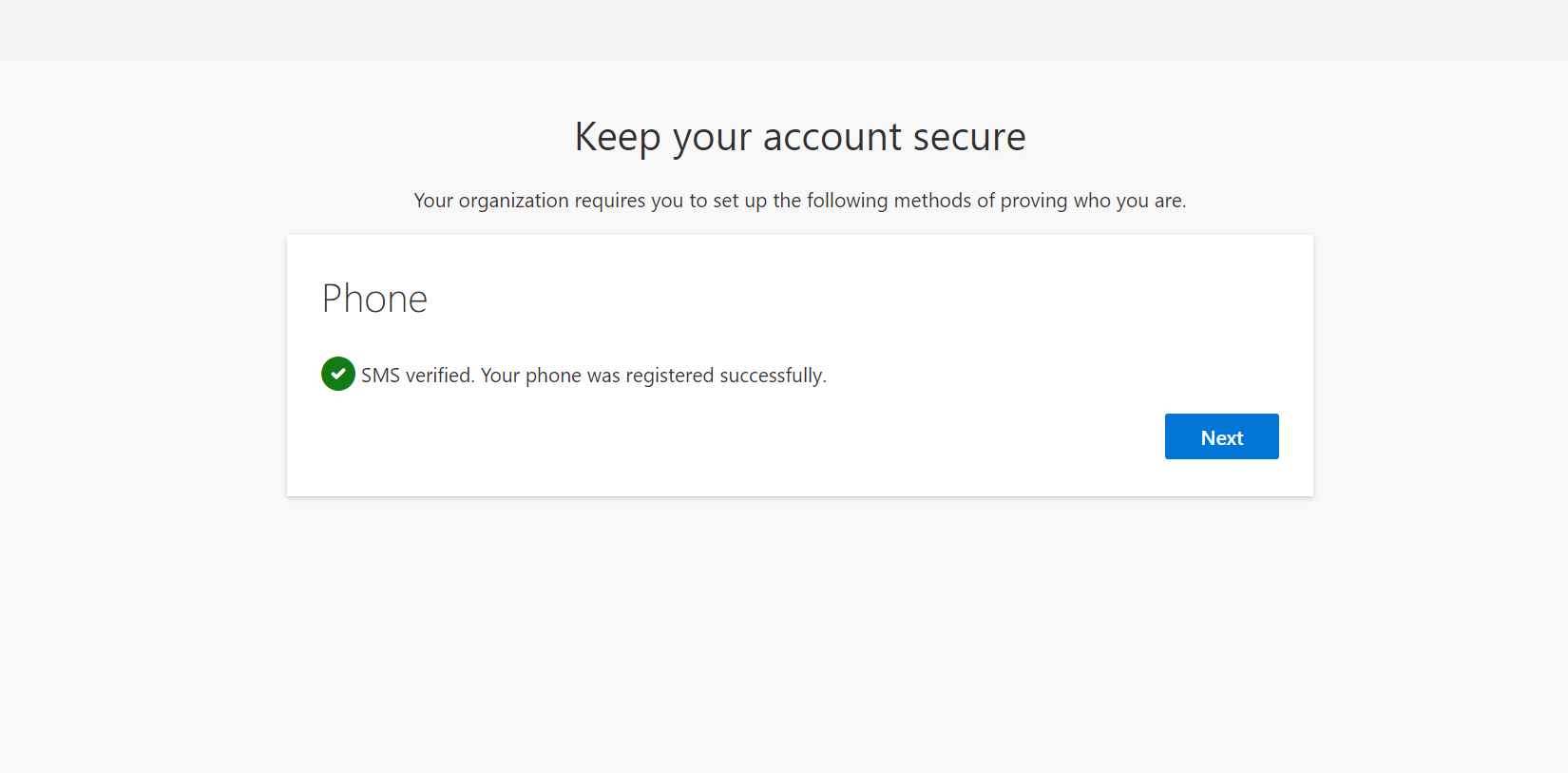
You have now setup a Mobile Phone Number Authentication.
Was this article helpful?
That’s Great!
Thank you for your feedback
Sorry! We couldn't be helpful
Thank you for your feedback
Feedback sent
We appreciate your effort and will try to fix the article