- If you don't have Outlook installed, go to the Google Play Store on your Android device for the Microsoft Outlook app. Tap "Install".
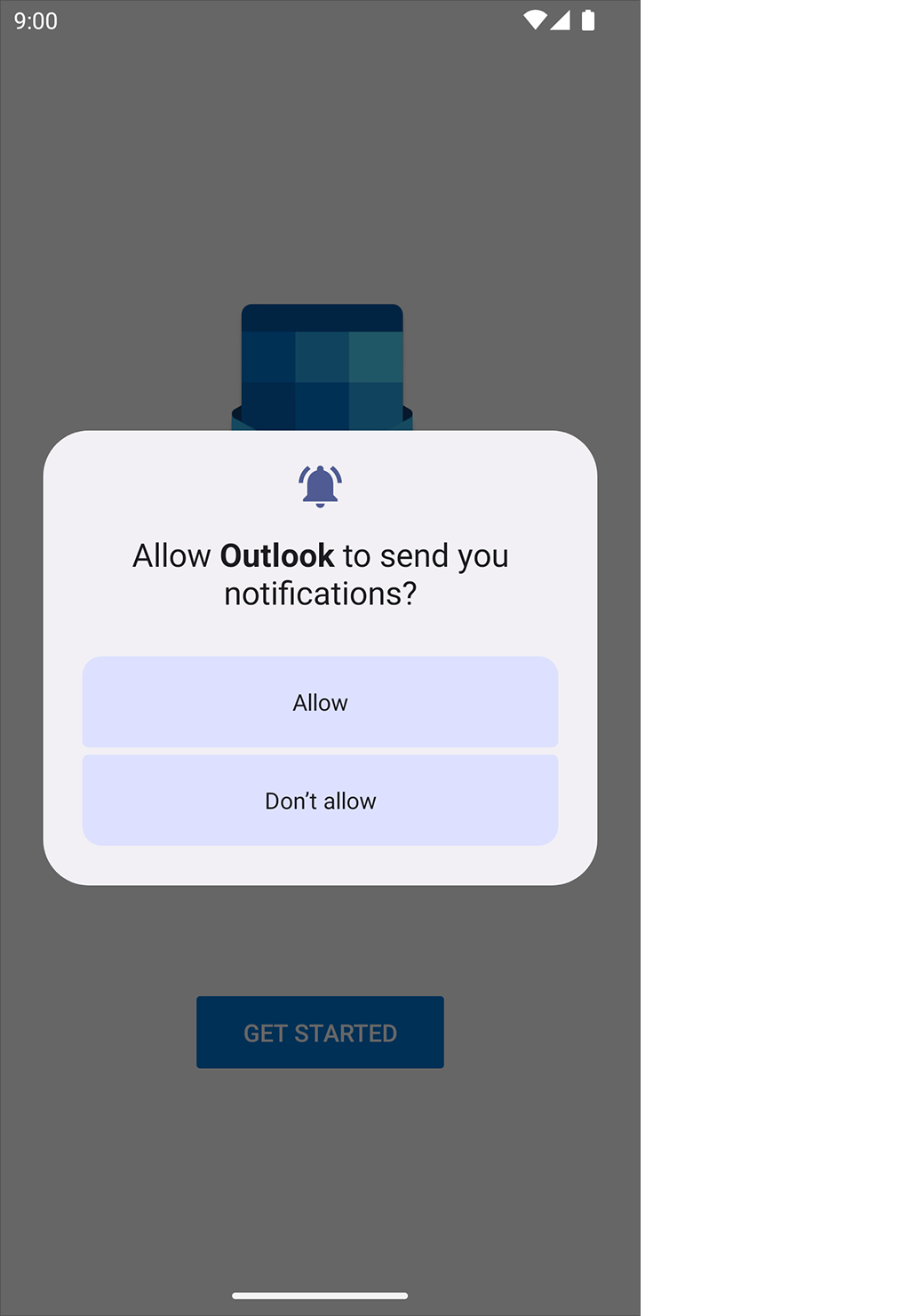
- Open the Outlook app. If prompted, select whether or not you want to allow notifications.
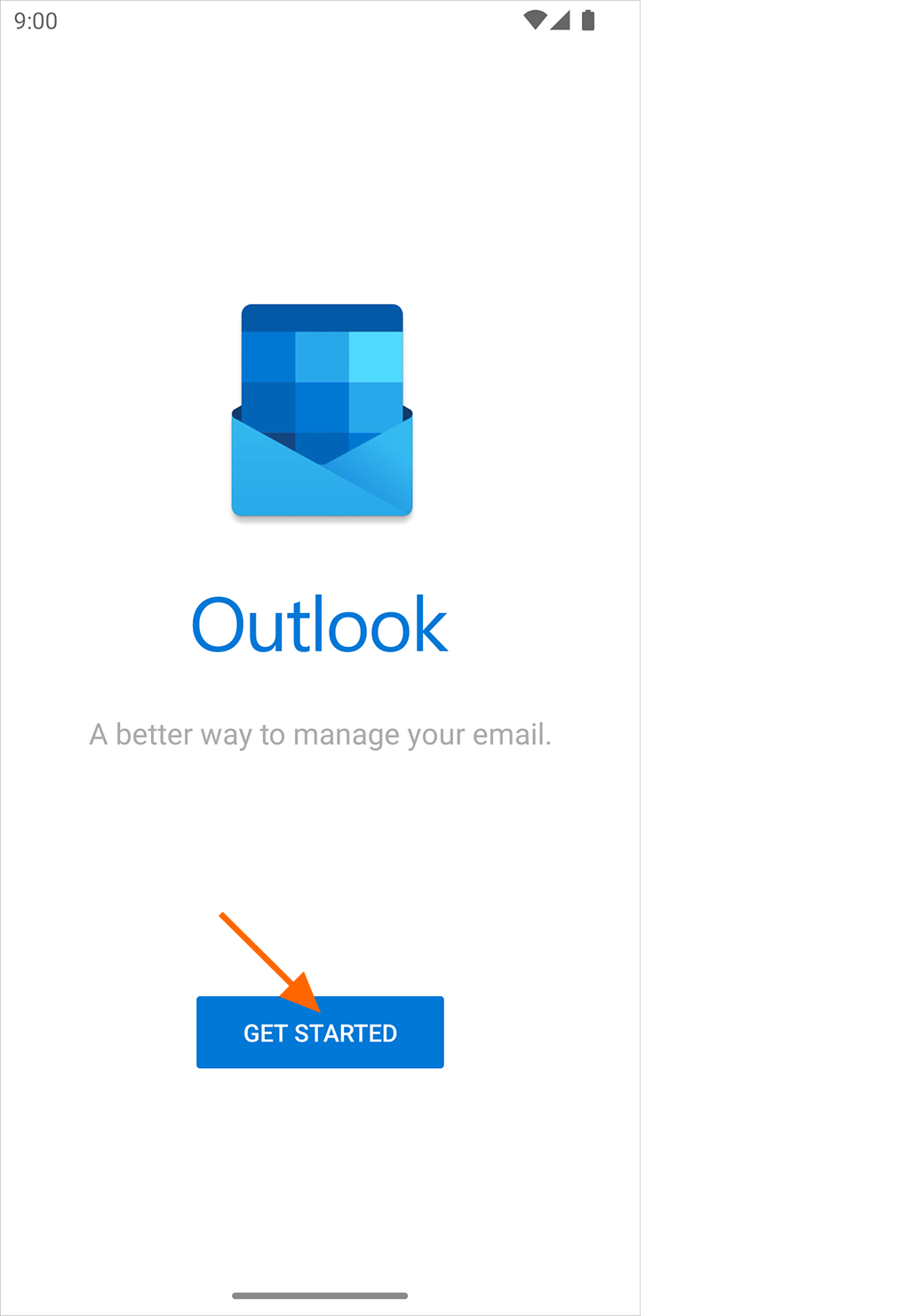
- Tap Get Started.
You are prompted for your email address. Enter your BKPlus email address, ending in @bkplus.co.uk, then enter your password. WARNING: Do not tap the "Add Google Account" button. Instead, tap Continue.
Was this article helpful?
That’s Great!
Thank you for your feedback
Sorry! We couldn't be helpful
Thank you for your feedback
Feedback sent
We appreciate your effort and will try to fix the article